Sending files or media between devices wirelessly has been around for quite a while now. From Bluetooth to Hotspot file sharing, sharing files and media is a crucial feature not only in Android smartphones but in any modern device we usually use.
Today, I am talking about an open-source file-sharing app that uses your local network to share files between all the devices connected to your WiFi network. This app’s name is LocalSend, which is a multi-platform application built on Flutter.
In this blog post, I am going to address this app’s features, some problems you might face while setting up the app, and also some of the alternatives if you want to consider them.
1. End-to-End Encryption
One of the strongest features of LocalSend is its end-to-end encryption. When you send a file using LocalSend, the file is encrypted on the sender’s device. It remains encrypted while in transit and decrypts on the receiving device.
What it means is that no third-party servers can read your data, even devices on the same network can’t intercept readable files, even on shared local networks.
2. Privacy-Friendly
LocalSend is built with privacy as a core principle. No account or sign-up required, no cloud storage is involved, no data tracking or analytics, and it is also fully open-source. Since all transfers happen locally, your files never leave your network unless you configure advanced networking options like VPNs yourself.
This makes it ideal for users who are privacy-conscious and also for offline environments like offices and classrooms.
3. Multiple File Sharing With Multiple Devices
You can send files to multiple devices at the same time. You can select multiple file types and even folders in one go, and also send them to multiple devices all at once. This feature really comes in handy when you are working with a team and need to send multiple files or folders to multiple people at the same time.
Hey, did you know? You can easily monitor your WiFi and mobile data using the Glasswire app for free.
4. Using Tailscale and ZeroTier with LocalSend
By default, LocalSend works only when all your devices are connected to the same local network. That’s perfect for home or office use—but what if your phone and PC aren’t on the same Wi-Fi? This is where tools like Tailscale and ZeroTier can make LocalSend even more powerful.
Both Tailscale and ZeroTier create a virtual private network that connects your devices over the internet and makes them behave as if they’re on the same local network. Once connected, LocalSend doesn’t know the difference; it simply sees your devices and allows you to send files as usual.
Tailscale
Tailscale is the easier option for most users. You sign in, install it on your devices, and they automatically connect using secure, encrypted tunnels. It’s built on WireGuard and handles all the networking complexity in the background.
ZeroTier
ZeroTier, on the other hand, offers more control. You join a virtual network, approve devices manually, and can fine-tune how traffic flows. It’s slightly more technical but ideal for advanced users who want flexibility or already run homelabs.
Once either of these is active, using LocalSend feels exactly the same as before. Your devices appear in the app, file transfers stay end-to-end encrypted, and there’s still no cloud storage involved. You’re simply extending your local network across the internet in a secure and private way.
This setup is especially useful for remote work, transferring files between personal devices, or avoiding cloud services altogether while still sharing files from anywhere.
Now, let’s talk about some of the issues you might face when setting up LocalSend on your devices. The most common ones are these two.
5. Windows Firewall Issue
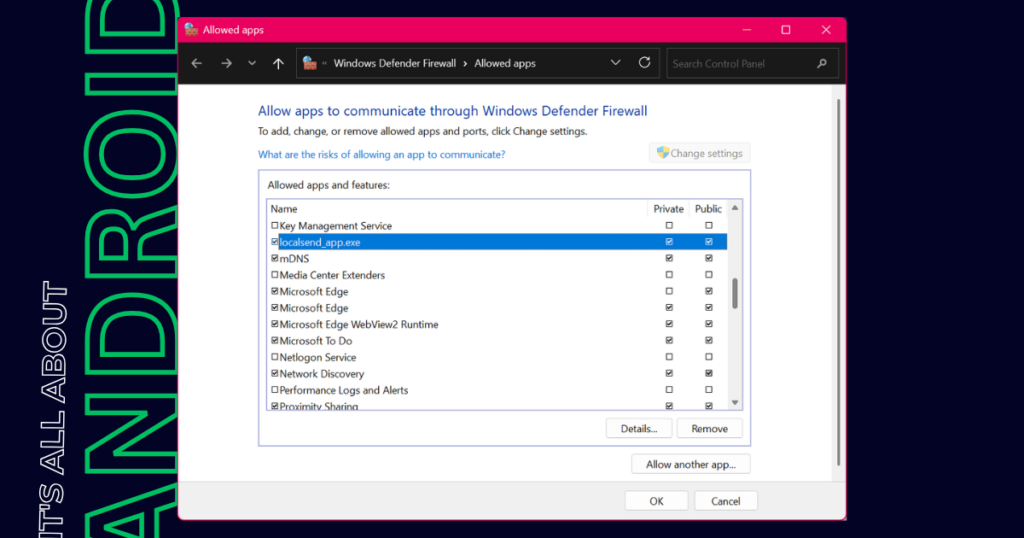
On Windows, you might need to allow LocalSend through the Firewall to send files to devices connected to your local network. Search ‘Firewall and Network Protection’ in the Windows Start menu. Open it and then click on Allow an app through firewall. After that, click on Change Settings and look for localsend_app.exe. Tick the Private column and save.
This usually resolves the sending issue that Windows users encounter when the firewall prevents devices from being discoverable on the same network.
6. Fixing Access Point Isolation
Some routers enable Access Point (AP) Isolation, which prevents devices from communicating with each other—even if they are on the same Wi-Fi network. This can break local sharing apps, including LocalSend.
Now, how can you fix this issue? First, you have to access your router’s settings page and find wireless security → advanced security → AP isolation/client isolation. The settings will be different according to your router; you can search for AP isolation along with your router model.
7. Other File Sharing Options Worth Checking Out
While LocalSend is an excellent choice for private and local file sharing, it’s not the only tool available. Depending on your needs, these alternatives might also be worth exploring.
Nearby Share (Android / Windows)
Nearby Share is Google’s built-in sharing solution for Android and Windows. It’s easy to use and works well for quick transfers between supported devices. However, it’s tightly tied to Google services, has limited platform support, and doesn’t offer the same level of transparency and control as open-source tools like LocalSend.
PairDrop
PairDrop is a browser-based file-sharing tool inspired by AirDrop. Since it runs in a web browser, there’s nothing to install, making it great for quick, one-off transfers. That said, browser dependency and occasional network discovery issues can make it less reliable for frequent or large file sharing.
Syncthing
Syncthing is a powerful open-source tool designed for continuous file and folder synchronization. It’s ideal if you want your files to stay updated across multiple devices automatically. However, for simple “send and receive” use cases, it can feel a bit overkill due to its setup and configuration requirements.
Landrop
Landrop offers a clean interface and cross-platform support, making it easy to share files between devices on the same network. While it works well for casual sharing, it doesn’t emphasize privacy and encryption as strongly as LocalSend, which may matter to more privacy-conscious users.
Conclusion
I personally prefer LocalSend, because it is open-source and also easy to use. I also use Nearby Share, as it comes pre-built into Android smartphones nowadays. You can use LocalSend if you want to send or receive files between multiple devices, like Linux, macOS, or iOS.
Hopefully, this post gave you a new perspective on local file sharing. If you’ve ever used a network-based file-sharing app, share your experience in the comments below—it might help someone else choose the right tool.