Have you ever tried finding a file on your Android phone and ended up opening five empty folders before giving up? File management is one of the most crucial aspects of any storage device, and Android phones are no exception. Most Android phones today come with Google’s own file manager, Files by Google.
TL;DR
- Why use MiXplorer?
Multi-tab support for easy copy-paste and duplicate file checking.
Displays folder sizes directly under folder names to instantly identify storage-heavy directories.
Powerful customization options with cloud integration support.
- What about the competition?
Choose Solid Explorer if you prefer a more polished UI with built-in storage analysis.
If you want a simple, lightweight experience with basic functionality, Files by Google is a solid choice.
While file management on Android has improved significantly over the years, many users still stick with the default file manager that comes pre-installed. However, power users often need something more advanced, flexible, and efficient.
That’s where MiXplorer comes in.
In this detailed MiXplorer file manager review, I’ll walk you through its standout features, customization capabilities, multi-tab support, cloud sync options, and how it compares to popular alternatives like Solid Explorer and Files by Google.
Folder Size Displayed Outside
This is a must-have feature for me.
MiXplorer shows the folder size directly below the folder title alongside the date and time, saving you the hassle of opening each folder to check how much space it’s taking up. You can instantly identify large folders and even delete empty ones without manually checking them.
If you often struggle to find missing files and end up going back and forth between empty folders, this feature alone can save you a lot of time.
Heavily Customizable
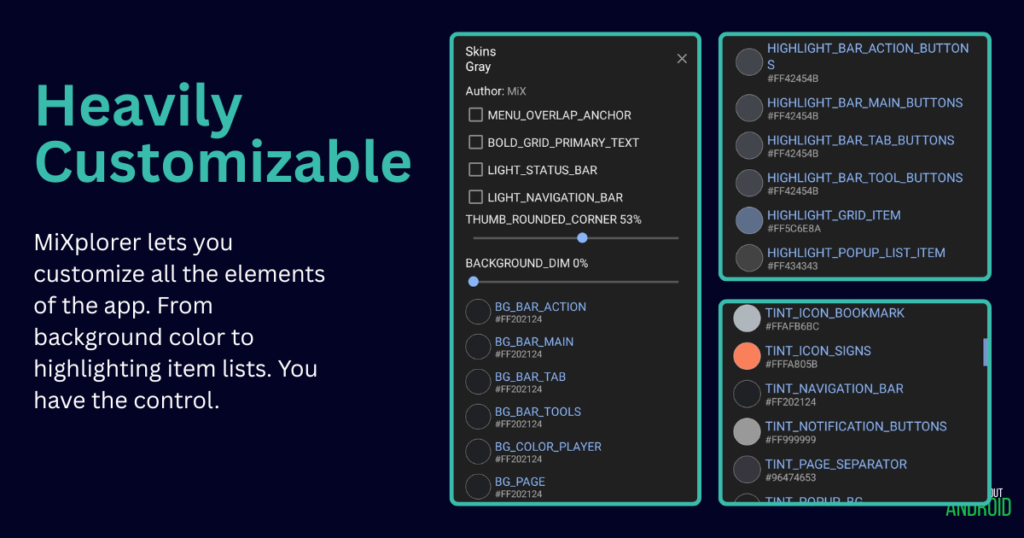
This is where MiXplorer truly stands out.
You can customize almost everything: Not only themes, colors, and icon styles, but layout structure, toolbar position, view modes, and even advanced sorting methods.
Whether you prefer a clean and minimal look or a highly detailed layout packed with information, MiXplorer gives you complete control. You can even download beautifully premade themes from the MiXplorer GitHub page.
The level of customization is impressive, though it may take a little time to understand which settings control which visual elements.
Multi-Tab Support
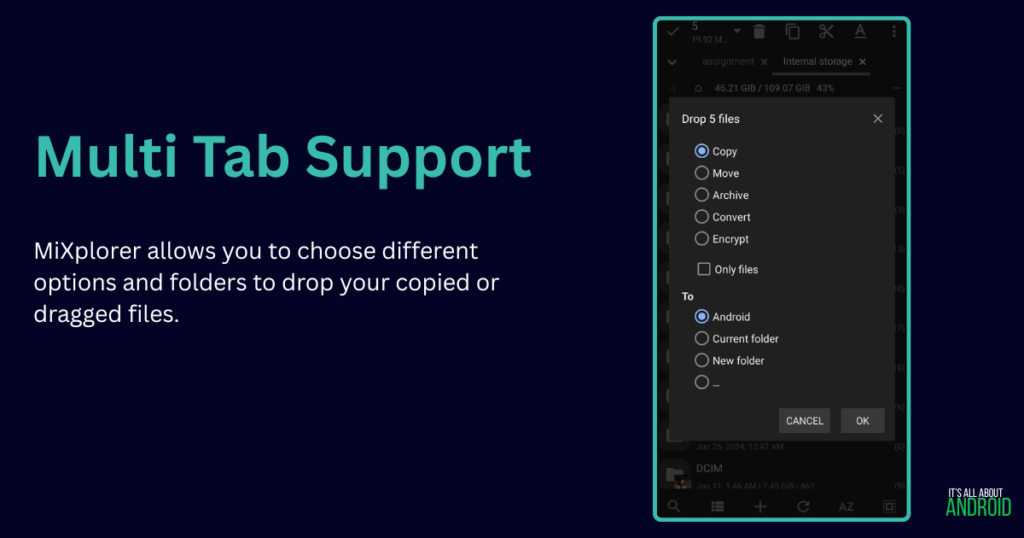
If you’ve ever tried comparing files between two folders and had to constantly switch back and forth, you know how frustrating that can be.
MiXplorer solves this problem by allowing you to open not just two, but multiple tabs at the same time.
You can easily drag and drop files between folders and compare directories that may contain duplicate files. This makes file organization much more efficient.
I’ve also covered another Android file manager called Xplore File Manager. If you’re a fan of old-school, dual-pane file managers, you might want to check out that blog post as well.
Cloud Sync Support
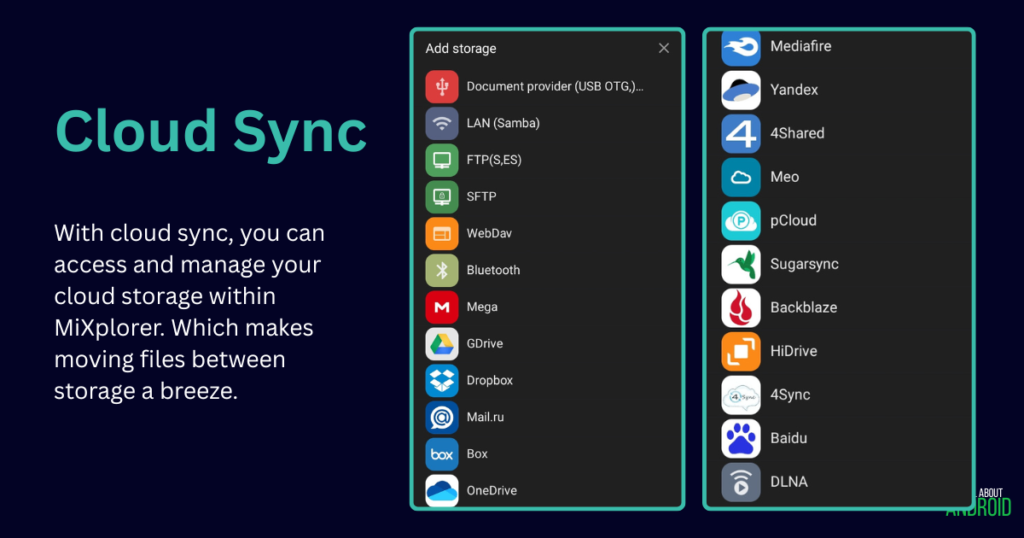
MiXplorer isn’t limited to managing local storage. It also supports cloud storage services.
You can connect and manage services like Google Drive, Dropbox, OneDrive, Mega, MediaFire, and many more, all directly from within the app. This makes it a powerful all-in-one file management solution.
Competition
Solid Explorer
Solid Explorer is the direct competitor to MiXplorer, as both offer strong customization features. However, there are some key differences.
Easy Customization
One of Solid Explorer’s strengths is its easy-to-use theme customization. You can choose from several built-in themes directly within the app or create your own theme with minimal effort.
In contrast, MiXplorer offers deeper customization but requires more time to understand and configure properly.
Advanced Storage Analysis
Solid Explorer also shines when it comes to storage analysis. It provides visual graphs and statistics that make it easier to understand how your storage is being used.
This feature is particularly helpful if you want a quick overview of which files or folders are consuming the most space.
Files by Google
Files by Google comes pre-installed on most modern Android smartphones. Over time, Google has added useful features such as:
- Search filters
- ZIP file extraction
- A top carousel showing recent files on the home page
Despite these additions, it remains a lightweight and minimalist file manager designed primarily for general users.
It gets the job done, is easy to use, and follows Google’s Material You design language. However, it lacks the advanced customization and power-user features offered by MiXplorer and Solid Explorer.
Conclusion
If you’re willing to spend a little time learning and tweaking settings to match your preferences, MiXplorer is one of the best file managers available for Android power users.
If you prefer easier styling options and built-in storage analysis tools, Solid Explorer might be the better choice.
And if you simply want a clean, straightforward file manager for everyday use, Files by Google will serve you just fine.
I hope you enjoyed this blog post. If you did, consider sharing it with your friends. Also, let me know in the comments which file manager you’ve used before. I’d love to hear your thoughts!